The Pierce Map App is intended to help you find your classrooms, landmarks at Pierce, and college departments which serve students. The App provides four main services, plus the info button which you tapped to display this panel.
To locate a classroom, you need to know the room number. Tap the Find A Room button and a search bar appears. Type the room number into the search bar and tap the Search button. The App will display a red circle at roughly the classroom location.
Some rooms have a character at the end of the number, for example 1505A. Do not type the letter when searching.
SPECIAL NOTE:At one point: If you had classes in the Center For the Sciences, the room number was not displayed properly on your personal class schedule. For example, if your schedule showed a class in a building named CFS9, and the room number was 1234, you would search for room 91234. The five-digit room numbers appear to be handled correctly in the schedule now.
Some classes are held in locations which have no room number in the Pierce schedule of classes. For example, horseback riding classes are held in the Equestrian area. To locate these, use the Find A Building button described below.
Off-campus locations are not included in the Pierce Map App. A list is available in the Pierce College schedule of classes.
Tap this button to locate a building. Each building is listed with the abbreviation used in the schedule.
For example, the listing for the Business building is:
BUS: Business
This button locates college departments and landmarks, such as the Freudian Sip coffee shop. It does not include academic departments.
This displays the standard Apple iOS personal location symbol, which is a blue dot with animated circles. Tap the Where Am I? button to turn it on or off. You must have Location Services turned on for the Pierce Map App for this to work.
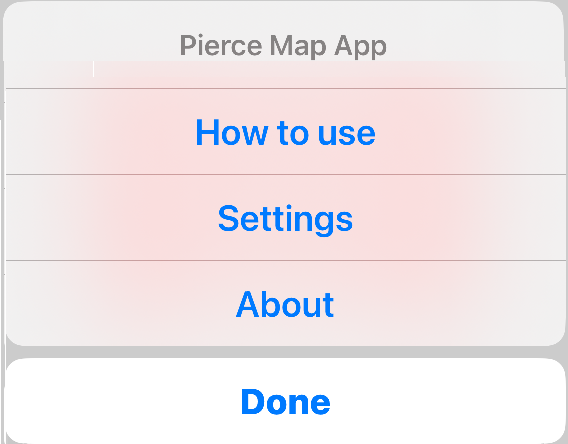
The information button opens an action sheet with the following choices:
|
How to use | This choice displays the page you are currently viewing, with general usage information. |
| Settings | This describes the settings you may change within the iPhone or iPad settings. It opens a separate page. | |
| About | Describes the version of the Pierce Map App you are using, provides a release history, and lists credits for those who have contributed to or otherwise supported the Pierce map App. | |
| Done | Closes the action sheet and returns to the map display window. |